
NaturalReader - Text to Speech
Naturalsoft LimitedProductivity
4.32.58K Reviews
- Version
- 9.47
- Installs
- 5.00M
- Age Rating
- Everyone
Screenshots
Our Review of NaturalReader - Text to Speech
 Analysis by Appyee
My first useful test of a text-to-speech app is not whether its voice sounds impressive in a sample; it is whether I can hand it something I actually need to read and get going without a lot of fiddling. NaturalReader - Text to Speech is aimed at that everyday job: turning written material into audio so I can listen while my eyes or hands are occupied. I found it most appealing for documents and longer reading, rather than as a replacement for every screen reader or audiobook app.
It is a free productivity app from Naturalsoft Limited, with optional in-app purchases priced from around ten dollars to around one hundred and sixty dollars per item. Its average rating is 4.4 from around 54,000 ratings, and it has over one million installs. It is rated for everyone, so the basic idea is easy to understand even if you have never used a reading app before. The important thing for a new user is to start with one short piece of text, make sure the voice and pace suit you, and only then move on to a long document.
What to expect from a listening-first reading app
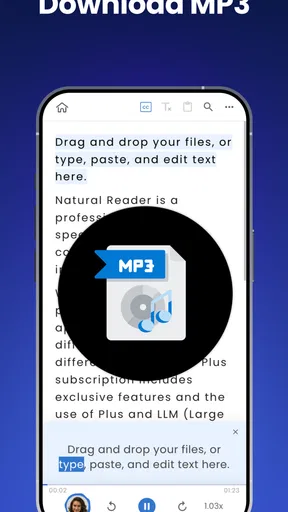
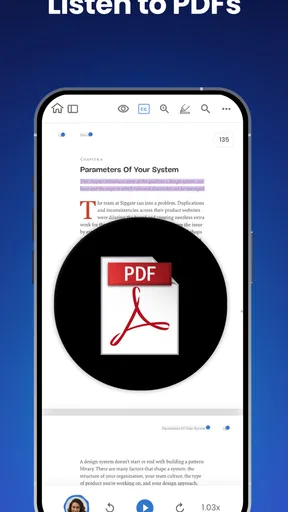
NaturalReader focuses on listening to material you already have, rather than finding books or articles for you. Its range covers PDF files and more than twenty document types, and it can turn text into MP3 audio. The app also promotes a large selection of AI-powered voices. That breadth is useful, but it does not mean every document will sound equally smooth: a clean paragraph is much easier to follow than a page full of tables, footnotes, or unusual formatting.
I would think of it as a way to give written material a second route into your day. It can help when you want to review notes while preparing a meal, listen to a report during a walk, or hear a draft rather than stare at it again. It is not the same as a human-narrated audiobook, and it will not automatically make dense or poorly structured writing pleasant to hear. That distinction helped set my expectations: the app is most useful when the source text is already worth reading.
The current version is 9.40, and it supports devices running Android 7.0 or later. If you are deciding whether to try it, the free starting point makes it practical to test with a real document before considering any paid options. The purchase range is wide, so I would check what a particular paid option includes in the app before spending money; I would not assume that every voice or feature is included at no cost.
Getting from installation to a first useful listen
First things first, downloading NaturalReader is a breeze. Available on both Android and iOS, you'll find it in your app store, ready to transform your reading experience. Once installed, the setup is straightforward. The app greets you with a clean interface that even a non-techie like me can navigate without breaking a sweat.
For a reassuring first run, I would choose a short passage rather than begin with a long PDF. That gives you a quick chance to hear whether the selected voice pronounces names and abbreviations acceptably, and whether the pace feels comfortable. If the first sample sounds too fast or too synthetic, change one setting at a time; switching voice, language, and speed all at once makes it harder to tell which adjustment helped.
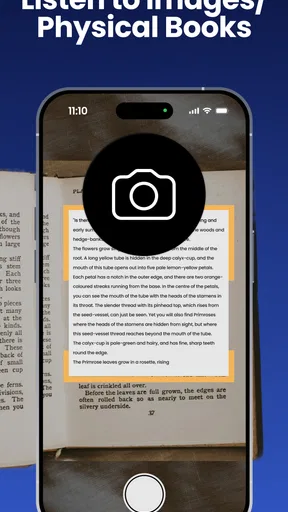
Upon opening the app, you're presented with a few options. You can either paste text directly, upload documents, or even use the camera to capture text. Yup, you read that right! Snap a pic, and it’ll read the text back to you. Pretty cool, huh?
That gives a newcomer a few different ways to reach the same first success. Pasting a paragraph is the quickest way to test the voice. A saved document is more practical if you want to return to a reading later, while camera capture makes sense when the words are on a physical page rather than in a file. For a first attempt, I would use a page with ordinary paragraphs and good lighting, then listen to a small section before relying on the capture for anything important.
Choosing a voice without getting stuck auditioning
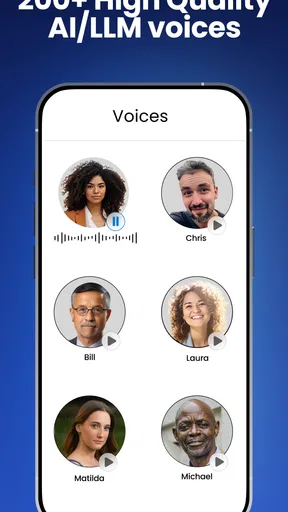
One of the standout features is the variety of voices. You can choose from a range of characters, each with its unique tone and accent. Whether you prefer a soothing British accent or a lively American twang, NaturalReader has got you covered. The voices are surprisingly natural, which is a relief because robotic voices can get annoying fast.
I spent a good chunk of time switching between voices, and it’s honestly fun exploring the different options. It feels like having a mini-casting session for your audiobook.
For actual work, though, I would avoid treating voice selection as a hobby that delays listening. Pick two or three voices and compare the same short paragraph, paying attention to clarity rather than novelty. A voice that sounds expressive in a sentence may be tiring over a chapter, and one that is easy to understand at a moderate pace may be the better daily choice. If you regularly hear more than one language, check that the voice and language fit the text before starting; a mismatch can make even a good voice difficult to follow.
Making a document easier to listen to
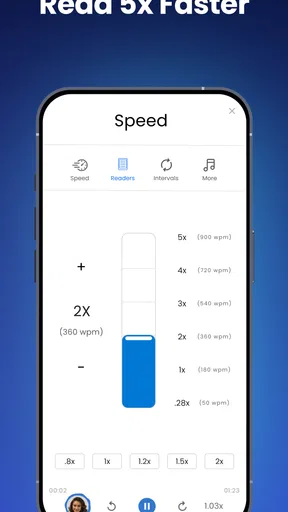
The app isn’t just about reading text aloud; it’s packed with features that make it a handy tool for everyday use. You can adjust the reading speed, which is fantastic if you’re like me and want to slow things down to catch every word or speed it up while multitasking.
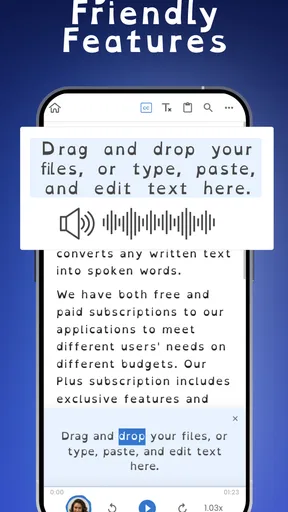
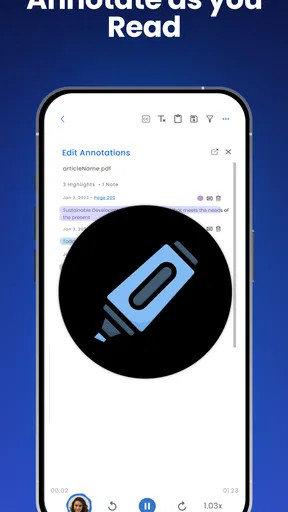
There’s also a highlight text option, ensuring you can follow along visually if you wish. Plus, you can save your documents, making it easy to pick up where you left off, whether you're reading an article or going through study material.
A practical detail is that listening and following along can serve different purposes. When I am proofreading, highlighting can help me notice a sentence that reads awkwardly; when I am reviewing familiar material, I may prefer to put the phone aside and listen without watching the screen. For study notes, a slower pace can help with unfamiliar terminology, while faster playback is better reserved for material I already know. I would not force one speed or reading style across every kind of document.
Document structure is another reason to test before committing to a long session. If a PDF has columns, headers, page numbers, or tables, the spoken order may not feel like normal prose. Try a page or two first and see whether the app follows the argument in a useful order. If the layout gets in the way, a clean text version or a shorter excerpt may be more comfortable than pushing through the whole file as-is.
Where it fits into a real day
NaturalReader isn’t just for those with visual impairments; it’s a fantastic tool for anyone looking to multitask efficiently. Whether you’re a student needing help with reading assignments or a professional wanting to catch up on reports during your commute, this app is a game-changer.
Another neat feature is the ability to sync across devices. Start reading on your phone and continue on your tablet without missing a beat. It's these little touches that make the app feel polished and user-friendly.
A realistic routine might be a student who saves a reading before leaving home, listens to one section while walking to class, and returns to the next section later to study with the text visible. A professional could use a similar approach for a report: listen once for the broad argument, then return to the document on screen for figures or passages that need careful checking. In both cases, I would treat audio as an extra pass through the material, not as proof that every detail has been absorbed.
This is also where NaturalReader differs from the usual alternatives. A phone’s built-in spoken-content tools can be convenient for reading what is already on screen, and they may be enough for occasional short passages. A dedicated audiobook app is usually better when I want a polished, human performance of a published book. NaturalReader sits between those habits: it is more directly useful for personal documents and text I bring myself, but it cannot make every source sound like a professionally narrated title.
For accessibility, listening can be a valuable alternative route through text, but the right tool depends on the task. Someone who needs full device navigation or detailed spoken feedback may be better served by the accessibility features built into their operating system. Someone who mainly wants documents read aloud can find NaturalReader a more focused option. I would try it with the types of material you actually use, rather than assuming one app will cover every accessibility need.
Keeping the experience comfortable and predictable
Let’s talk about the user experience. Navigating through the app is a smooth sail. The developers have clearly put thought into the design, ensuring everything is intuitive. I didn’t find myself clicking around aimlessly, which is always a plus.
The option to customize settings is comprehensive. You can tweak the voice settings, choose different languages, and even personalize the appearance of the reading pane. It’s like having a custom reading experience tailored just for you.
One useful habit is to separate setup from listening. When you have a document ready, first confirm the language, voice, and pace, then begin playback and leave the controls alone unless something is genuinely uncomfortable. That small routine avoids interrupting a good listening stretch to keep auditioning voices. If you plan to move between devices, check that the document and your place in it are available where you intend to continue; syncing is convenient, but it is worth verifying before depending on it during a busy day.
MP3 conversion is most valuable when a listener wants audio to use beyond an immediate read-aloud session. Before making it part of a regular workflow, I would test a short section and listen to the result from start to finish. That reveals whether the selected voice handles punctuation and the document’s wording well enough for repeated listening. It also helps avoid converting a lengthy file only to discover that the source needs cleaning first.
There are limits to what I would ask the app to do. AI speech can stumble over specialist vocabulary, acronyms, names, and text extracted from a complicated page. A fast setting may save time on familiar prose but make unfamiliar content harder to retain. And while the range of voices invites experimentation, the purchase options mean I would not assume that every choice is part of the free experience. Those are manageable trade-offs, as long as you test with a representative sample and check the cost of anything you specifically want.
Who will get the most from it
I think NaturalReader is a strong fit for people who already have documents they want to hear: students revisiting readings, workers reviewing written material away from a desk, and anyone who benefits from switching between reading and listening. It is especially appealing when the same text needs more than one pass, because you can listen for the overall meaning first and then return to the page for details.
I would skip it if your main goal is to discover and stream professionally narrated books, or if you only need a built-in tool to read a sentence now and then. I would also be cautious if your daily material is dominated by complex tables or specialized terminology; the app may still help, but a quick sample will tell you more than a voice demo can. For someone who needs the phone itself read aloud and navigated throughout, an operating-system screen reader may be the more appropriate first choice.
Wrapping It Up
All in all, NaturalReader - Text to Speech is a versatile app that delivers on its promises. It’s user-friendly, packed with features, and offers a wide array of voices that keep the reading experience fresh and enjoyable. Whether you're a busy bee or just want a break from screens, this app is worth checking out.
If you’re looking for a reliable text-to-speech app that goes beyond the basics, NaturalReader might just be the perfect companion for your reading adventures. Give it a try, and you might find yourself wondering how you ever managed without it!
My advice is to make the first session small and purposeful: choose a paragraph you already understand, test a couple of voices, and settle on a pace that feels clear. Then try a real PDF or document you expect to revisit. That approach answers the key questions quickly: whether the voice works for your ears, whether the file reads in a sensible order, and whether listening fits your routine. If those checks go well, the app can become a useful companion for turning spare moments into another way to engage with your own reading.
Verdict
Strengths of NaturalReader - Text to Speech
- High-quality voice options available.
- Easy to convert text to audio files.
- Supports multiple languages seamlessly.
- User-friendly interface and navigation.
- Allows customization of reading speed.
Limitations of NaturalReader - Text to Speech
- Limited features in free version.
- Occasional pronunciation errors.
- Needs internet for some features.
- Ads can be intrusive in free tier.
- Premium version can be pricey.
Similar Picks in This Category
View All
Google Calendar
Google LLC4.6

Google Drive
Google LLC4.3

Google Assistant
Google LLC3.9

Microsoft OneDrive
Microsoft Corporation4.6

Samsung Calendar
Samsung Electronics Co., Ltd.4.1

Microsoft OneNote: Save Notes
Microsoft Corporation4.6
Frequently Asked Questions
What is NaturalReader - Text to Speech, and how does it work?
NaturalReader is a text-to-speech application that converts written text into spoken words. It’s designed to assist users by reading aloud documents, web pages, and eBooks. The app supports multiple file formats and languages, offering a variety of natural-sounding voices. Users can either upload documents or paste text directly into the app for immediate conversion.
Is NaturalReader available on both Android and iOS platforms?
Yes, NaturalReader is available for download on both Android and iOS devices. The app is designed to provide a seamless text-to-speech experience across both operating systems, ensuring users have access to its features regardless of their preferred platform. It can be downloaded from the Google Play Store and the Apple App Store.
What are the key features of NaturalReader - Text to Speech?
NaturalReader offers several key features, including a wide range of voices, support for different languages, and the ability to read various file formats such as PDFs, Word documents, and eBooks. It also includes options for adjusting reading speed and voice pitch, enhancing the listening experience. Additionally, users can bookmark pages and save files for offline listening.
Is there a cost associated with using NaturalReader - Text to Speech?
NaturalReader offers a free version with basic features, allowing users to experience the app's text-to-speech capabilities. However, a premium version is available for purchase, providing access to additional features such as higher-quality voices, more language options, and an ad-free experience. Users can choose the version that best suits their needs.
How can NaturalReader benefit individuals with learning disabilities?
NaturalReader can be particularly beneficial for individuals with learning disabilities such as dyslexia. By converting text to speech, the app helps users comprehend written material more easily. The ability to listen to text can improve focus and retention, making it a valuable tool for students and professionals who struggle with reading traditional text.
